Changelog
New features and improvements from the Montra team.

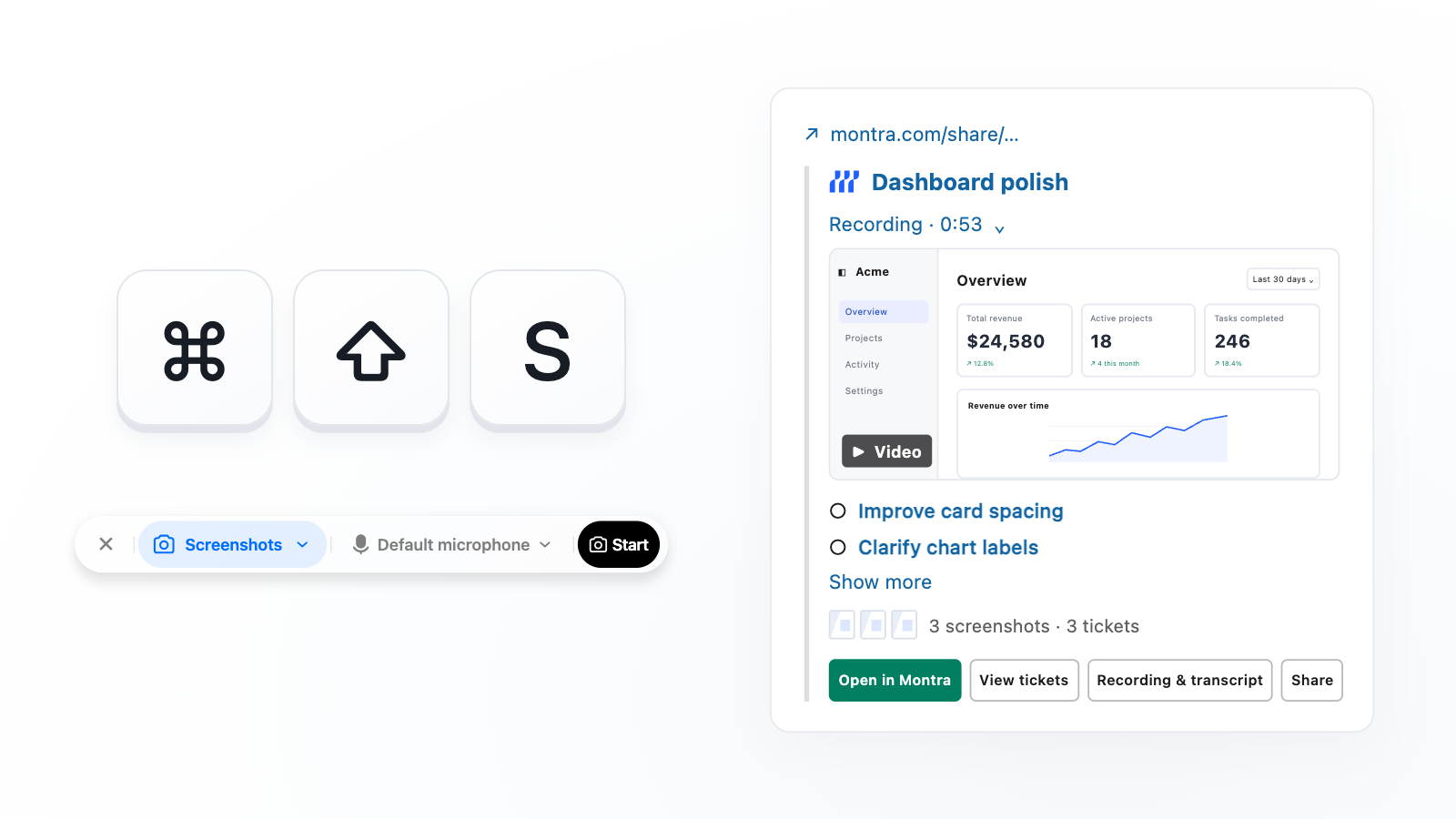
New Screenshot Hotkey + Montra’s Slack Integration
You can now connect Montra to your Slack workspace and use dedicated screenshot hotkeys to capture and paste without breaking stride.
New
- Montra now integrates natively with Slack. Paste a Montra link into a channel and accept the prompt to install Montra in your workspace. Your tasks and screenshots will render beautifully, and videos can be previewed inline.
- We’ve introduced a new shortcut for screenshot mode. Start a screenshot session with the Command + Shift + S keyboard shortcut, and when you’re done, Montra will automatically copy your cleaned-up transcript and images to your clipboard. Your task will still be waiting for you in your Montra document if needed.
- Montra officially has a plugin in the ChatGPT Store. For all you Codex users, give it a try and let us know what you think!
- When you create a new document, we’ll automatically recommend a folder for it based on its content.
Improvements
- Automatic screenshot capture waits less before firing, so capturing a screen takes noticeably less time.
- The screenshot hotkey now captures the entire screen immediately instead of pausing to ask which window you meant.
Fixes
- Ticket tracker approval requests remain actionable instead of going stale.
- The finalization bar now clears itself after you stop recording and paste the bundle, instead of lingering with nothing left to do.
- The screenshot pill keeps its annotation controls after a window recording, so you can mark up the shot instead of losing the option.
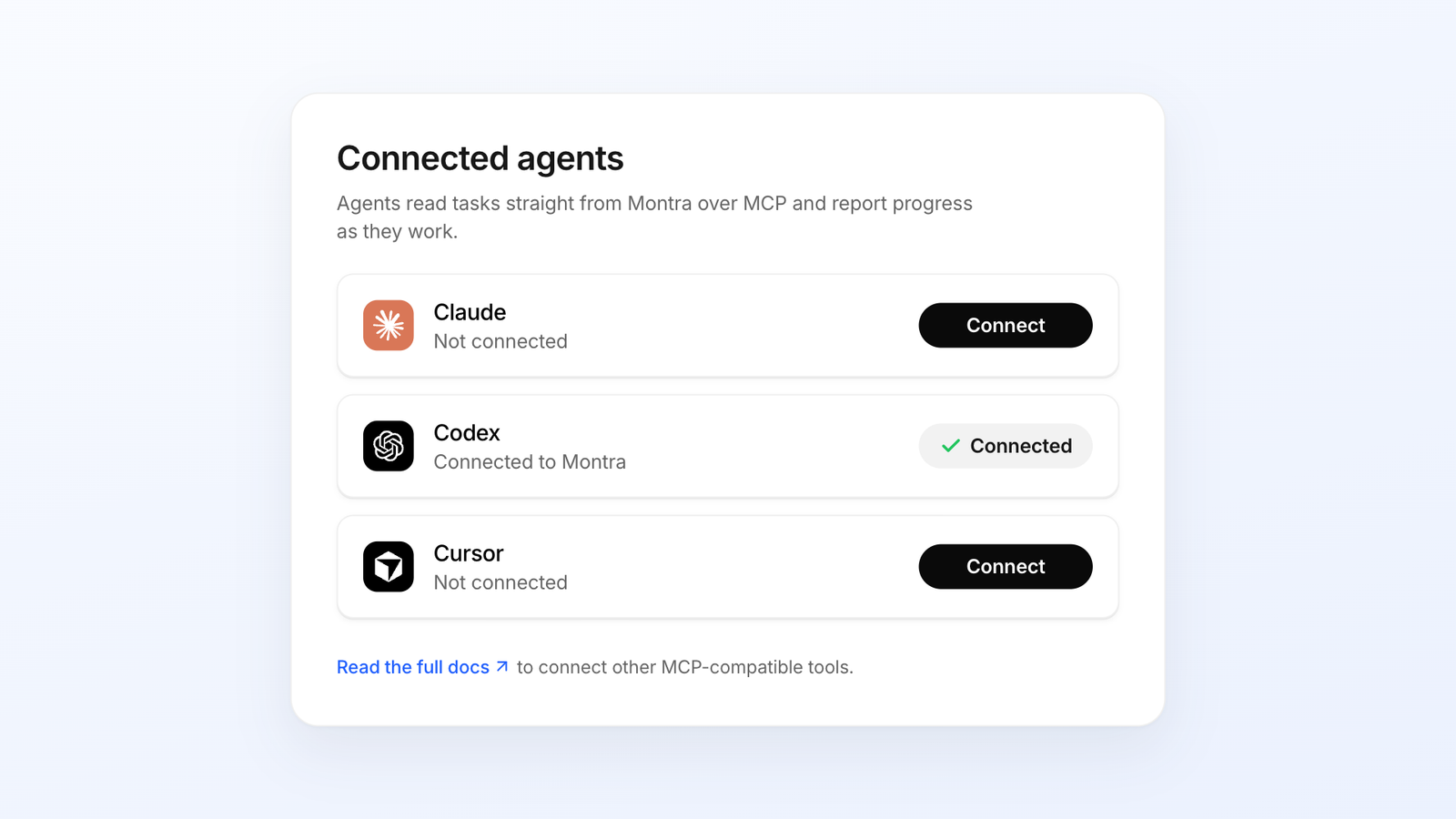
Connect to Your Agent in One Click
Linking Montra with your coding agent is now a single click, with live confirmation that it actually connected. Copied tickets also keep their video links, so whoever you paste them to can watch what you described. And if your team lives in Notion, tickets can now go straight there.
New
- Connect Montra to your coding agent in one click and watch it confirm the connection live.
- Export tickets to Notion pages or databases, with defaults chosen for you so there's nothing to configure.
Improvements
- Onboarding got a round of polish so setting up Montra for the first time reads more clearly from start to finish.
- The status picker for sending several tickets to Linear at once now sits where you'd expect to find it.
Fixes
- Copying a ticket now includes its video links instead of quietly leaving them behind.
- Confirming your email no longer sends a second confirmation, and the page follows your light or dark mode.
- Fixed a bug where tickets on a share page now appear were not in the same order as in the desktop app.
- Stopping a recording now waits until the recording is safely handed off before the pill disappears, and Montra warns you if you try to quit mid-recording.
- Annotations you draw during a recording stay on screen until you clear them instead of vanishing on their own.
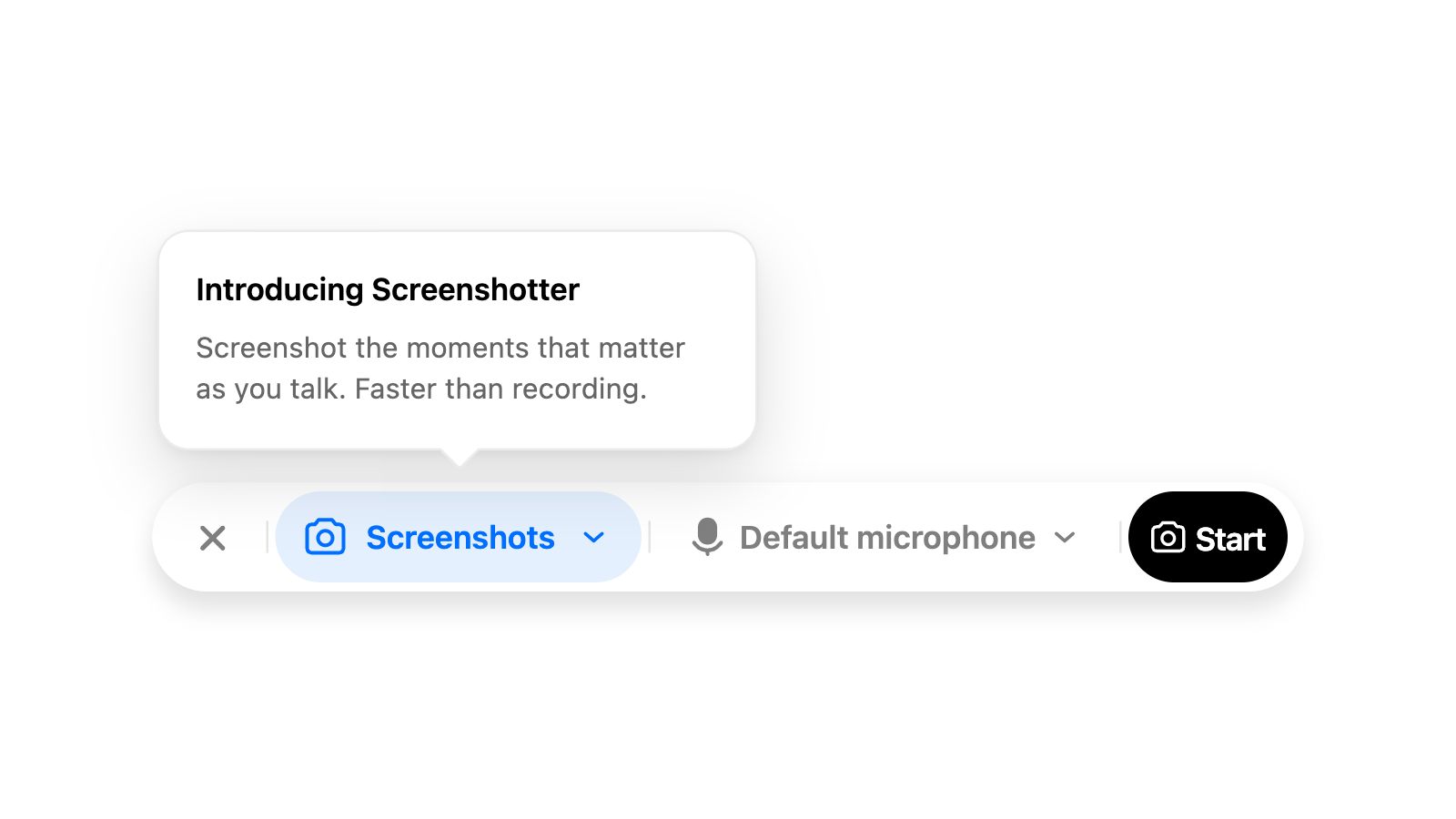
Introducing Screenshot Mode
You can now capture a narrated screenshot session instead of a full screen recording, and switch between capture modes whenever it suits the thing you're explaining.
New
- Capture screenshots while you talk. Screenshot mode lets you narrate your feedback and capture screenshots with Command + Shift + 1 or Command + Shift + 2. Montra also captures a screenshot automatically after you annotate your screen.
- Switch modes without starting over. Move between screen recording and screenshot capture using the new capture switcher.
- Get the same organized tasks. Montra automatically turns your screenshots and narration into tasks, formatted just like those created from screen recordings.
Fixes
- The quit warning now only appears when quitting would actually interrupt work in progress, instead of every time you try to quit the app.
- Onboarding no longer strands you on the recording permission step once you've actually granted access.
Jira Export and Sharper Search
Montra can now push your implementation prompts straight into Jira, and search does a much better job of finding the recording or ticket you half-remember.
New
- Connect Jira and create tickets straight from Montra, right alongside Linear.
- Move recordings to the trash from the header menu, the selection bar, or ⌘⌫, with a confirmation before anything disappears.
Improvements
- Exporting goes straight to your tracker when only one is connected, and asks which one when you have a choice.
- We now support exporting documents as Markdown, find it in the three-dots menu beside Share, or behind ⌘K.
- Trim selections in our editor show a blue waveform, and Cut becomes Revert over ranges you've already removed.
Fixes
- Share page playback survives a refresh and no longer breaks when the player swaps video formats mid-stream.
- The recording toolbar stays on top of screen-share overlays instead of vanishing underneath them.
A Refreshed Video Editor
The video editor got a full visual rebuild, including a new timeline!
Improvements
- Smoother pinch to zoom experience and timeline seeking
- Faster clip trimming, cutting and reverting actions
- Cropping no longer requires you to save your video editing changes
Search got smarter
Search now understands what’s inside your Montra workspace, not just titles. It can read screenshots, understand references, summarize recordings, and surface the right ticket or document from a plain English description.
New
- Search by what you mean. Describe what you’re looking for instead of trying to remember the exact title.
- Screenshots can finally speak for themselves. Visual references are read for text and described, so mockups, screenshots, and other references are searchable too.
- Recordings are searchable now. Montra pulls out a summary and key moments from the narration so you can find that thing you vaguely remember saying three recordings ago.
Fixes
- Lost your connection? You’ll now get an actual network error and a retry button instead of the deeply helpful “something went wrong.”
- montra.com/docs links now go straight to the docs. Revolutionary stuff.